|
Create a Database
2011/06/25 |
|
Create a Database.
|
|
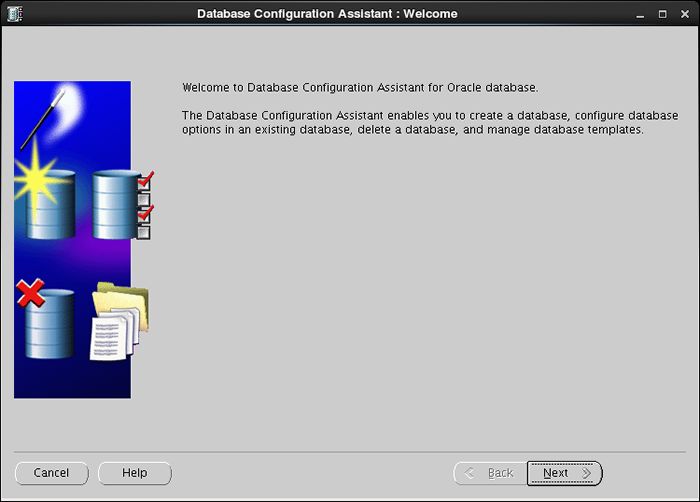
| [1] | Login as a Oracle user and Input a Command "dbca", then following screen is shown. Click "Next" to proceed. |
|
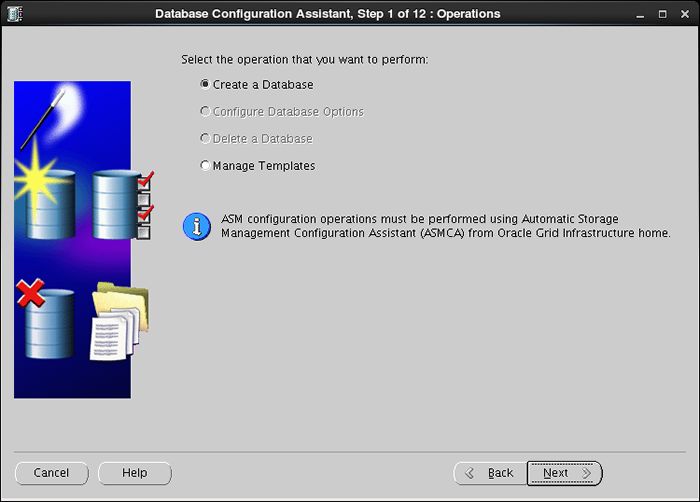
| [2] | Select "Create Database" and go next. |
|
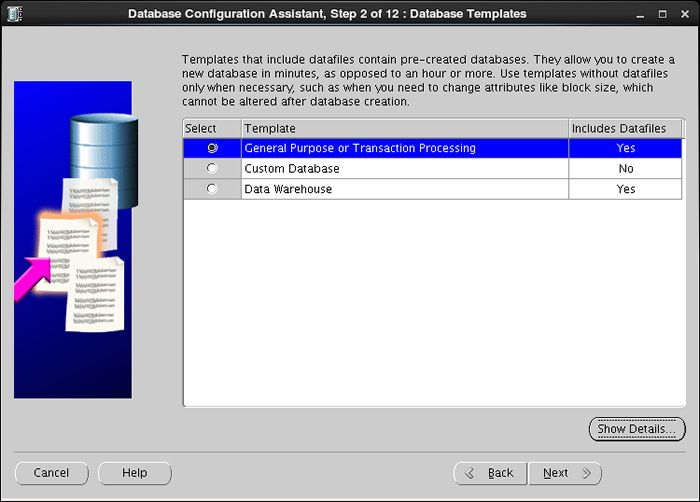
| [3] | This example selects "General Purpose ***" and go next. |
|
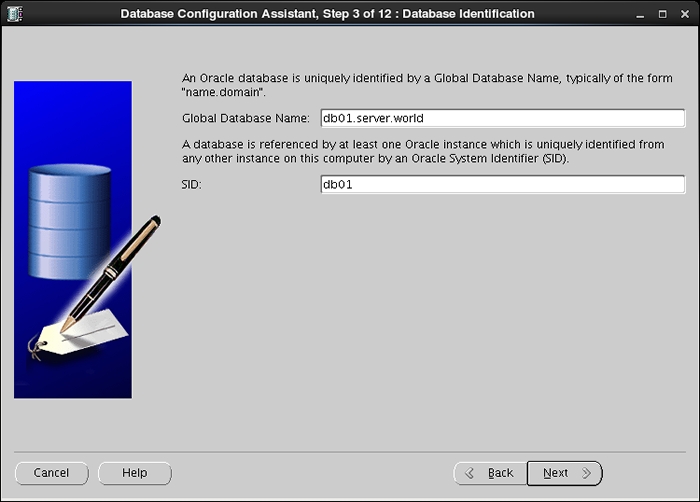
| [4] | Set Grobal Database name and SID like follows. Input any one you like. |
|
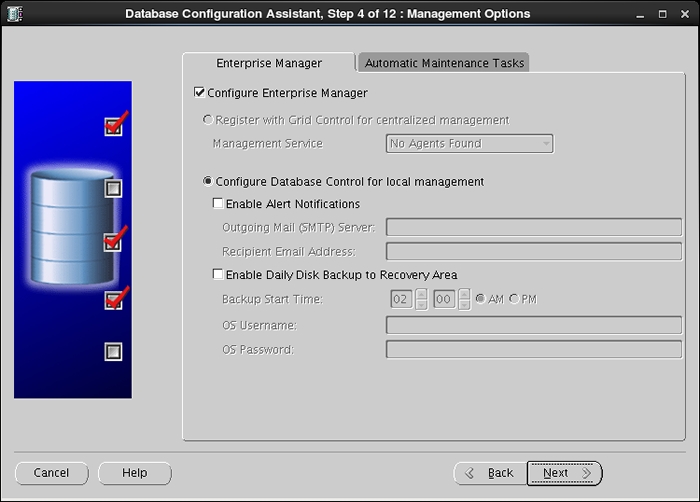
| [5] | This example goes next with keeping default. |
|
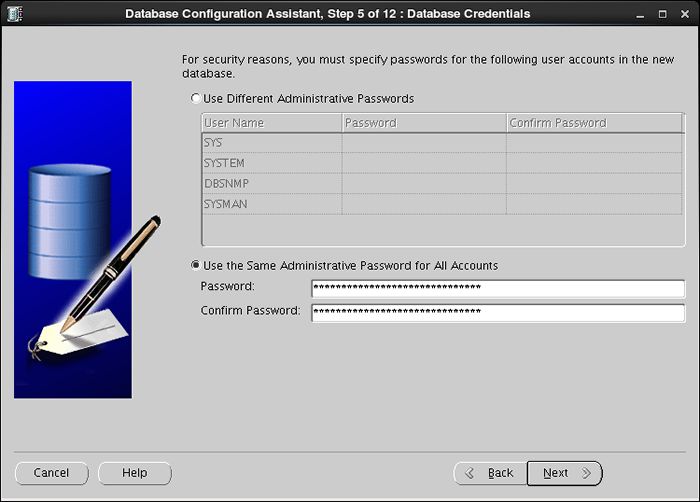
| [6] | Set passwords. Please set a password for a user for security. |
|
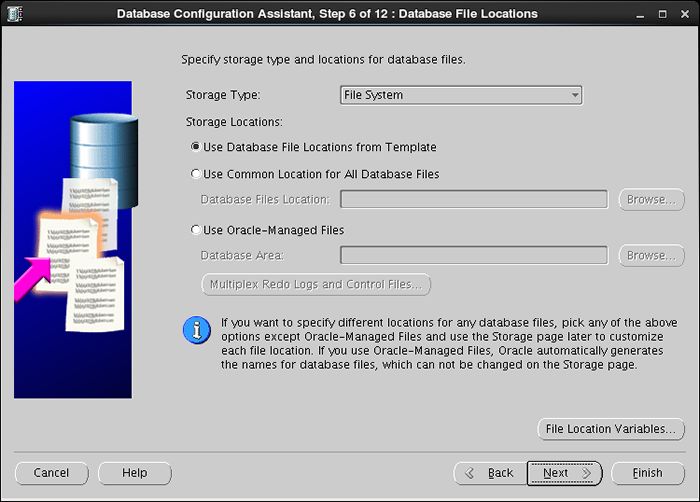
| [7] | This example goes next with keeping default "File System". |
|
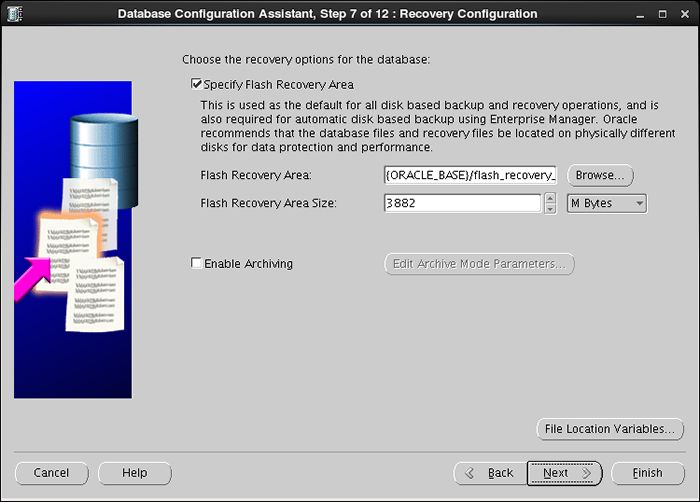
| [8] | Configure recovery settings. If you'd like to change it, Set it. |
|
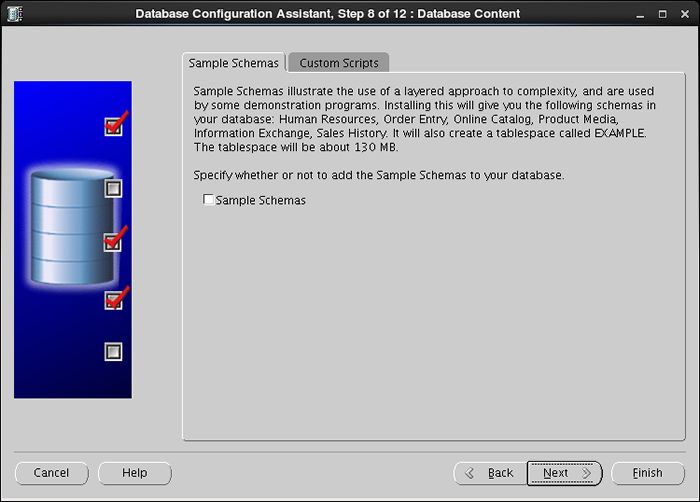
| [9] | Configure sample schema and scripts. If you'd like to add them, Set them. |
|
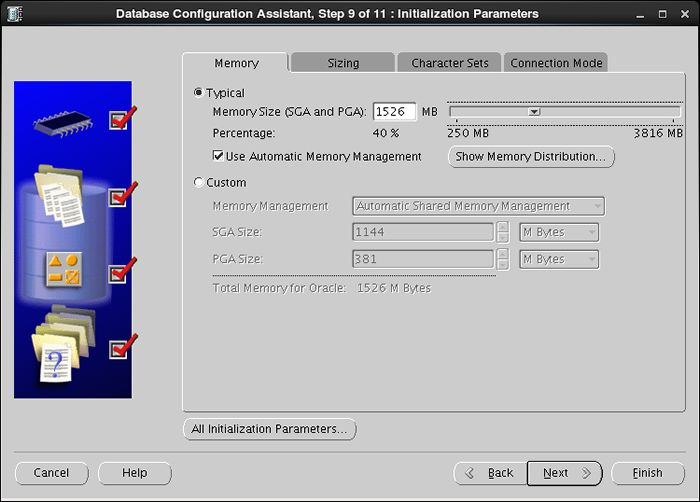
| [10] | Configure memory setting. After setting, go to next tab. |
|
| [11] | Specify max processes. |

|
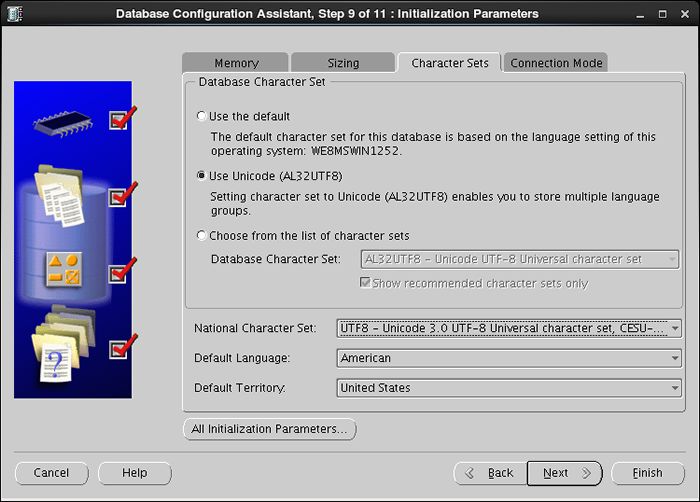
| [12] | Set Character setting. |
|
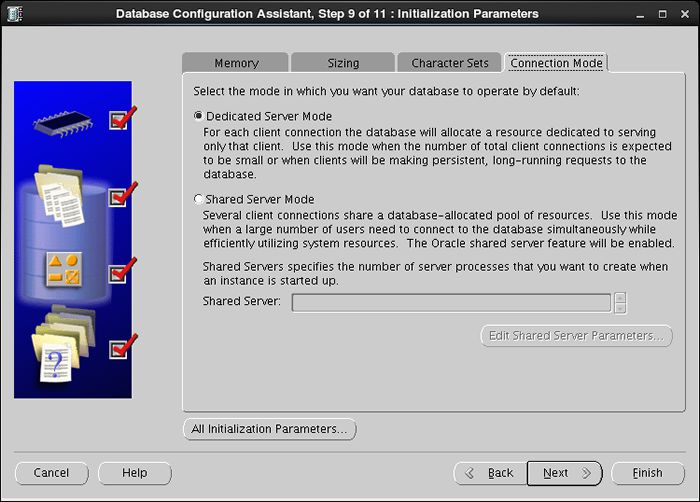
| [13] | Select connection mode. If your server does not have many clients, Select Dedicated server mode. If your server has many clients, Select Shared server mode. |
|
| [14] | Confirm parameters for Storage settings. If you'd like to change, set them. |

|
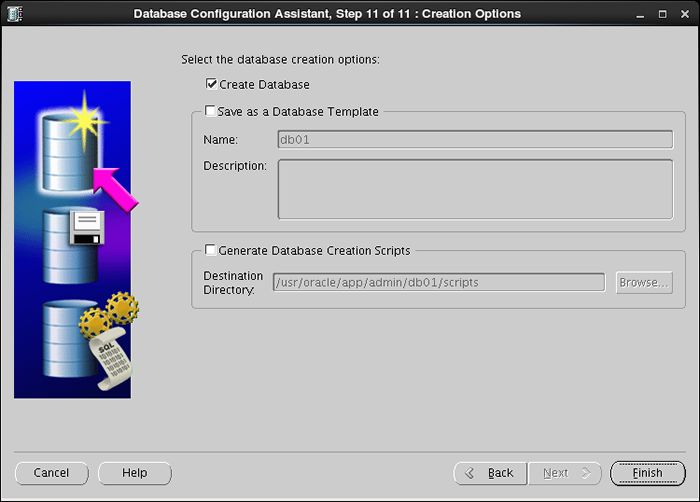
| [15] | Configuration completed. Click "Finish" button to finish. |
|
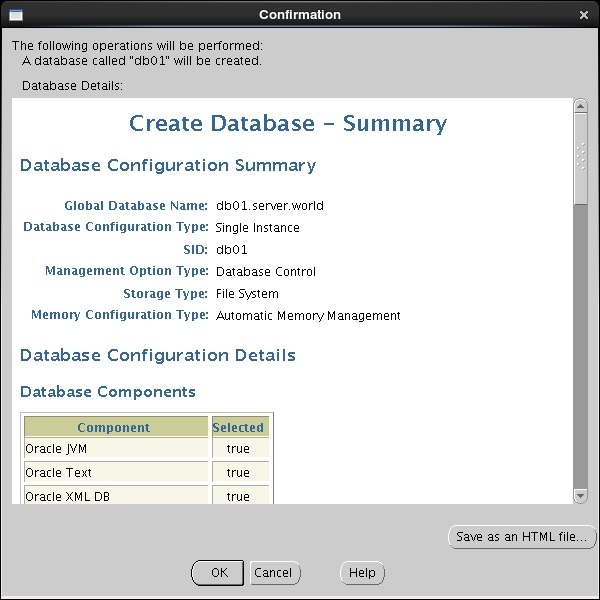
| [16] | Confirm settings and Click "OK" if all are OK. |
|
| [17] | Database creation starts. |

|
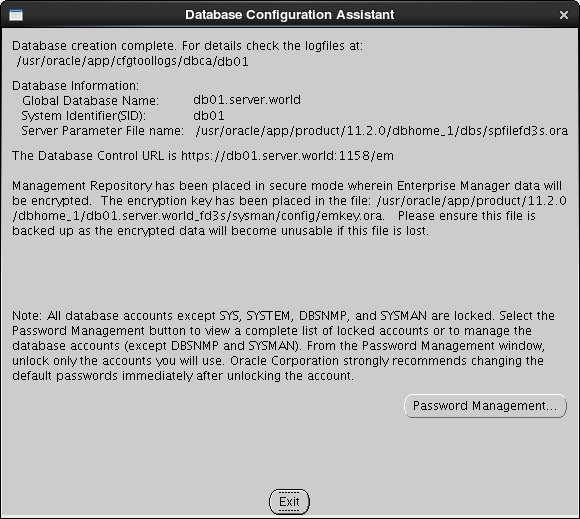
| [18] | After completing to create a database, Click "Exit" to finish. |
|
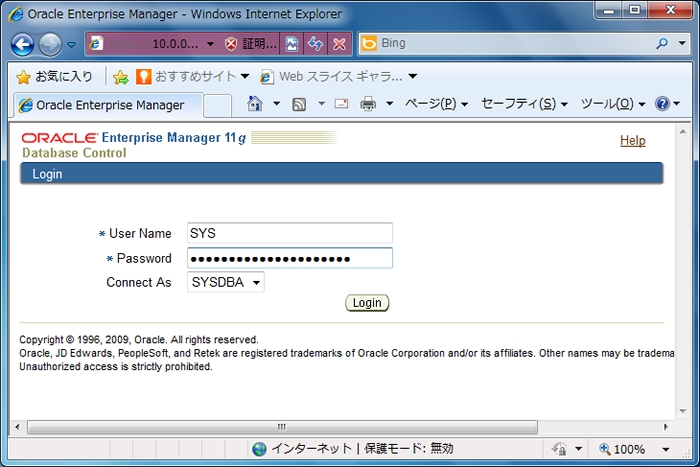
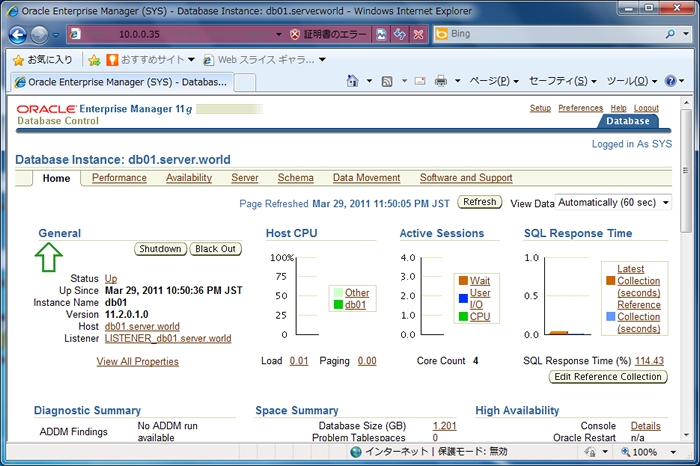
| [19] | Access to a URL that is shown on finished screen above with web browser, then follwing screen is shown. Input a user name and password that you configured on the section [6]. |
|
| [20] | Just logined. It's possible to manage the database on here. |
|